
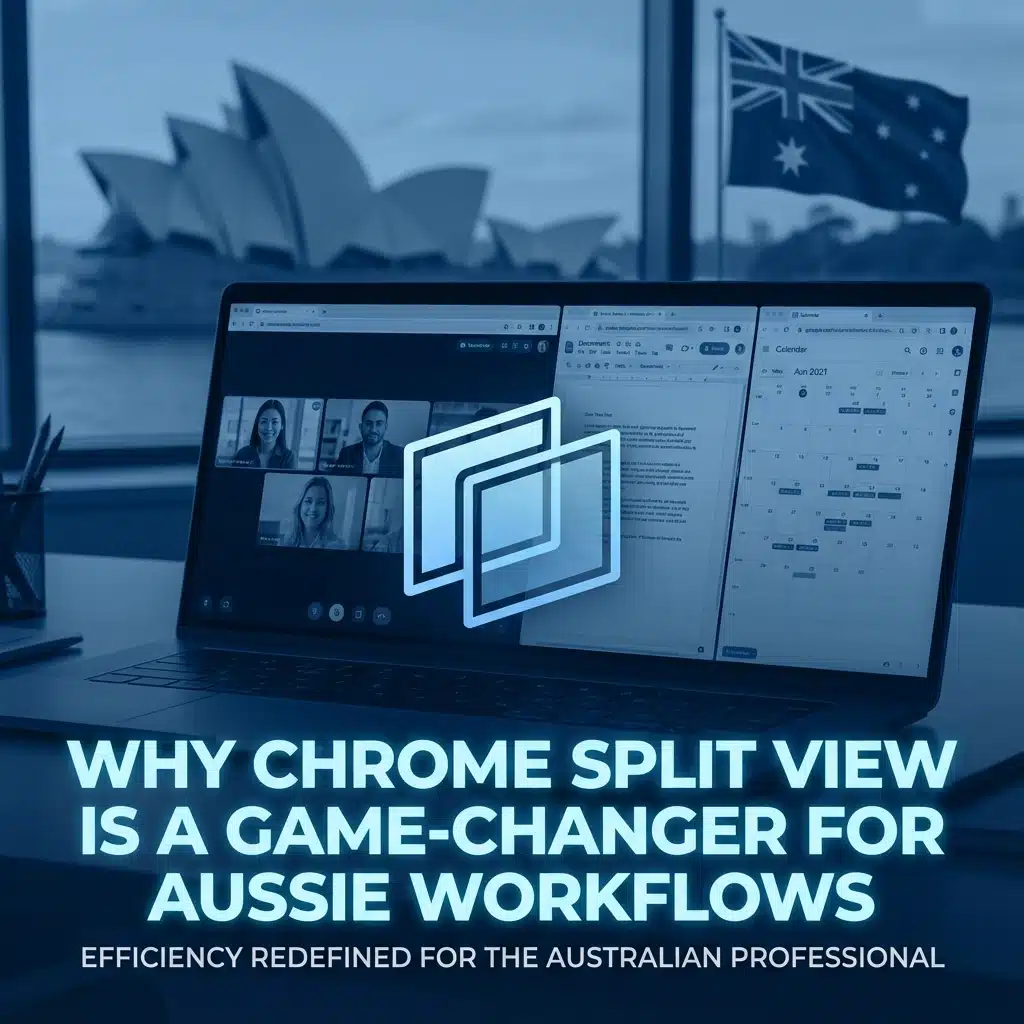
If you’re like most Australian business owners and office workers, you probably spend half your day switching between Chrome tabs. One minute you’re checking emails in Gmail, the next you’re comparing supplier quotes in separate spreadsheets, then jumping to Google Docs to update a project proposal. It’s exhausting, isn’t it?
Well, Chrome’s Split View feature is about to change all that. And honestly, once you start using it, you’ll wonder how you ever managed without it.
What Exactly is Chrome Split View?
Think of Split View as having two monitors built right into your browser window. Instead of constantly clicking between tabs, you can view two webpages side-by-side in the same Chrome window. No more losing your place, no more forgetting what you were comparing, and definitely no more of that annoying mental juggling act we all do when managing multiple tasks.
The best part? It’s built right into Chrome, so if you’re already using Google Workspace for your business (and let’s be honest, most Aussie SMBs are), you’re all set.

Why This Matters for Businesses
Stop the Tab-Switching Madness
We’ve all been there. You’re trying to update your client database while checking their latest email, or you’re comparing three different office rental listings while calculating budgets in Google Sheets. The constant back-and-forth isn’t just annoying: it’s killing your productivity.
Split View eliminates this entirely. You can keep your reference material visible while you work, whether that’s comparing ACORN member suppliers, checking ABN details while filling out forms, or keeping your calendar open during project planning.
Perfect for the Aussie Remote Work Reality
With so many of us working from home or in hybrid setups, not everyone has the luxury of dual monitors. Split View gives you that multi-screen experience on your laptop, which is brilliant for those coffee shop work sessions or when you’re working from your kitchen table.
Streamlines Local Business Tasks
Here’s where it gets really practical. Say you’re a Melbourne-based consultant comparing different business insurance providers. Instead of opening each insurer’s website in separate tabs and constantly switching between them, you can view two policies side-by-side, making it dead easy to compare coverage and pricing.
Or if you’re updating your business details across multiple Australian directories like True Local, Yellow Pages, and Google My Business, you can keep your reference document open alongside each directory as you work through them.
Everyday Use Cases That Actually Make Sense
Research and Content Creation
If you’re writing blog posts, proposals, or reports (like right now!), Split View is a game-changer. Keep your source material open on one side while you write on the other. No more losing your train of thought because you had to switch tabs to check a statistic.
Supplier and Vendor Comparisons
Aussie businesses love shopping around: it’s in our nature. Whether you’re comparing local web designers, office supply companies, or freight forwarders, Split View makes it incredibly easy to put two quotes side-by-side and actually see the differences without squinting at multiple windows.

Client Communications
During those inevitable back-and-forth email conversations, you can keep the client’s original brief open while drafting your response. Or better yet, have their project requirements visible while you’re updating the shared Google Doc with progress notes.
Financial Management
Tax time becomes slightly less painful when you can view your bank statements alongside your accounting software or spreadsheet. Same goes for invoice processing: keep the supplier invoice open while you enter details into your accounting system.
How to Actually Use It (It’s Easier Than You Think)
Getting started with Split View is refreshingly simple:
- Right-click on any tab in Chrome and select “Add tab to new split view”
- Choose your second tab from the dropdown list that appears
- Adjust the split by dragging the divider line between the two panes
- Resize as needed: you’re not stuck with a 50/50 split
You can also open links directly into Split View from Gmail or Google Chat by right-clicking and selecting the split view option. Handy for when someone sends you a link you want to check without losing your current work.
Pro Tips for Maximum Productivity:
- Use the toolbar buttons to quickly swap which tab appears on which side
- Close one side when you’re done comparing without losing the other tab
- Create new tabs within the split view to keep your workflow going

When Split View Really Shines
Google Meet Presentations
If you’re sharing your screen during client calls or team meetings, Split View keeps everything neat and tidy. You can show a presentation alongside supporting documents, or demonstrate software while keeping notes visible: all without the awkward window switching that makes you look unprofessional.
Google Workspace Integration
Since most Australian businesses are already using Google Workspace, Split View works beautifully with Gmail, Google Docs, Sheets, and Drive. You can draft emails while referencing shared documents, or update spreadsheets while keeping project timelines visible.
Training and Onboarding
If you’re training new staff or walking someone through a process, Split View makes it easy to keep instructions visible while demonstrating the actual software or system. Much more professional than the old “sorry, let me just switch tabs” routine.
The Real Business Impact
Here’s what we’ve noticed helping Aussie SMBs get more productive: the little efficiencies add up to significant time savings. When you’re not constantly context-switching, you stay in flow state longer. When you can compare options side-by-side, you make decisions faster. When you can reference materials without losing your place, you make fewer mistakes.
For a typical office worker switching between tabs dozens of times per day, Split View can save 20-30 minutes of pure dead time. That’s time you can spend on actual work instead of digital housekeeping.

Getting Your Team on Board
The beauty of Split View is that there’s virtually no learning curve. Unlike complex productivity systems that require training and change management, your team can start using this immediately.
Consider running a quick 10-minute team session to show everyone the basics. You’ll probably find that once one person starts using it, the rest of the team picks it up naturally: it’s just that intuitive.
Beyond the Basics
While Split View is great for everyday tasks, it also opens up possibilities for more sophisticated workflows. Power users can combine it with Chrome’s tab groups, bookmarks, and keyboard shortcuts to create incredibly efficient work environments.
The key is starting simple and building from there. Get comfortable with basic split-screen work, then gradually incorporate it into more complex tasks as it becomes second nature.
Making It Work for Your Business
Every business has its own rhythm and workflow patterns. The trick with Split View is identifying where the tab-switching pain points are in your daily routine, then systematically replacing them with split-screen alternatives.
Start with your most common multi-tab tasks: email and document editing, research and writing, or comparison shopping. Once Split View becomes habit for these activities, you’ll naturally find other applications.
Chrome Split View isn’t revolutionary technology, but it’s one of those simple improvements that makes a noticeable difference to your daily work experience. For Australian businesses already invested in the Google ecosystem, it’s a no-brainer productivity boost that costs nothing and takes minutes to learn.
If your team is struggling with Chrome productivity or wants to get more out of Google Workspace, Cloud Computer Company can help with training and optimization. Sometimes the biggest productivity gains come from the smallest changes.
About Mathew Hoffman