
If you rely on Google Docs for drafting proposals, taking notes, or collaborating with your team, you’ve likely noticed that Google’s Gemini AI is becoming hard to miss. From summarizing long files in Drive to reading text out loud, Gemini is already baked deep into the Google Workspace ecosystem.
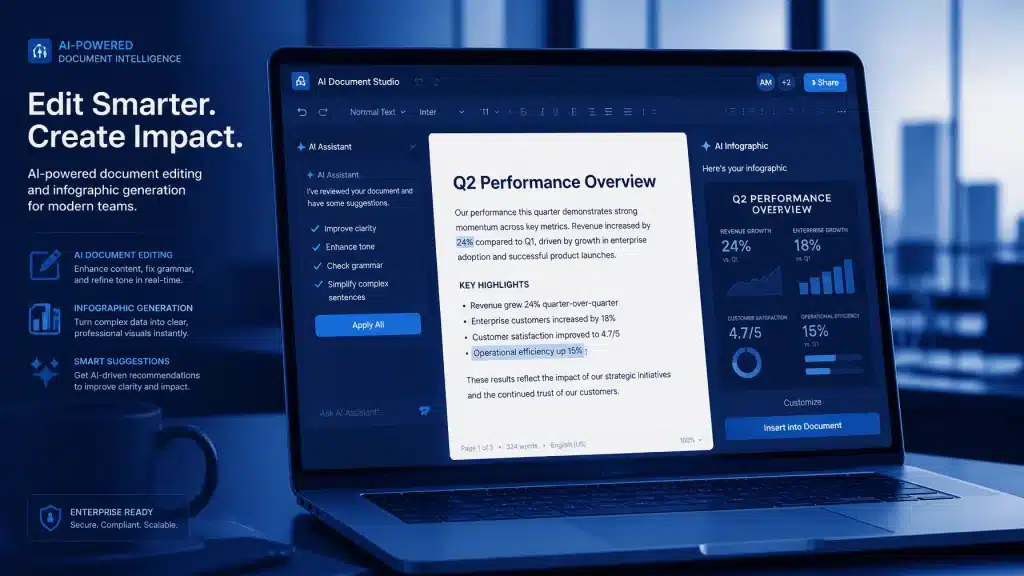
Now, Google is expanding its capabilities even further. As detailed in a recent Workspace update highlighted by Lifehacker, Google Docs is rolling out three major new visual creation and editing features powered by Gemini.
What Are the New Gemini Features in Google Docs?
Instead of forcing users to export text into external graphic design apps, Gemini can now generate, edit, and apply visual elements directly inside your document using natural language prompts.

1. Context-Aware Diagrams and Infographics
Gemini can read the context of your document to generate tailored visual aids. Asking the AI to “Add a diagram explaining this proposal” or “Create an infographic that summarizes this document” will yield graphics generated directly from the surrounding text.
2. On-the-Fly Image Adjustments
You no longer need external tools to crop or tweak graphics. You can ask Gemini to modify existing visuals directly: such as changing an image’s aspect ratio to 4:3 or altering its color scheme to match the surrounding document style.
3. Bulk Visual Generation and Batch Editing
For long-form reports or eBooks, updating images individually is tedious. Gemini now supports batch commands, allowing you to generate custom infographics for every section at once or apply a unified style filter across all existing document images in a single step.

Who Has Access?
These updates are rolling out to paid Google Workspace and AI subscription tiers, including:
- Business: Business Standard and Business Plus
- Enterprise: Enterprise Standard and Enterprise Plus
- Education: Education Plus, as well as Teaching & Learning / AI Pro for Education
- Individual Subscribers: Google AI Pro and Google AI Ultra accounts
For businesses looking to modernise their documentation workflows, exploring cloud-based collaboration strategies can significantly boost team productivity.
5 Practical Gemini Prompts to Try Today
To get high-quality visual outputs, prompts should combine subject matter, visual style, and structural guidelines (layout, color palette, or aspect ratio).

Here are 5 ready-to-use prompts for different document needs:
1. Document Summary Infographic
“Create a clean, modern infographic summarizing the key takeaways and milestones of this document. Use an isometric layout with a cool blue and slate gray color palette, clear sectional dividers, and minimalist icons for each major section.”
2. Step-by-Step Process Flowchart
“Generate a horizontal process flowchart diagram showing a 4-step workflow based on the process outlined in this doc. Style: modern flat vector with numbered nodes, directional arrows connecting each step, and a neutral light background.”
3. Concept Comparison Grid
“Create a two-column comparison infographic contrasting [Option A] and [Option B] based on the data in this doc. Style: high-contrast split-screen layout with bold labels, checkmark and cross icons, and a dark mode aesthetic.”
4. Technical Cutaway Illustration
“Create a detailed 3D cutaway diagram explaining the core components mentioned in this document. Use a clean technical illustration style with thin leader lines, clear text callouts, and subtle lighting on a white background.”
5. Timeline / Strategy Roadmap
“Generate a clean horizontal timeline graphic depicting the key dates and phases described in this doc. Style: minimalist line art with color-coded milestone markers, sleek typography, and a modern corporate aesthetic.”
By leveraging these advanced artificial intelligence capabilities in Google Docs, your team can transform dense text into engaging visual assets without ever leaving the document.
About Mathew Hoffman

Mathew Hoffman started his journey in IT back in 1981, holding senior roles at major institutions including the State Bank of NSW, Minet Australia, Wilhelmsen Lines, and Rothmans of Pall Mall: including a proud highlight supporting technology operations during the Sydney 2000 Olympics. Since 2001, Mathew has provided dedicated IT consultancy to small and medium businesses. He became an original Google Partner in 2008 and later re-branded to Cloud Computer Company in 2017. Based in Noosa, Mathew enjoys cricket (having played and coached in Sydney and the Sunshine Coast), spending quality time with family, visiting the beach, and playing golf.