
If you’ve been seeing headlines about Windows 11 “killing” old printers, take a breath. Your trusty office printer isn’t about to turn into an expensive doorstop overnight. But Microsoft is making some significant changes to how printer drivers work in Windows 11, and if you’re running a business with older printing hardware, you’ll want to know what’s coming.
Let’s cut through the panic and get to what’s actually happening: and what you need to do about it.
What’s Actually Changing?
Starting in January 2026, Microsoft stopped releasing new V3 and V4 third-party printer drivers through Windows Update. Notice I said “new” drivers: this is where the headlines get misleading.
If your printer is already set up and working on Windows 11, nothing changes immediately. Your existing driver will keep working just fine. Microsoft is shifting away from the old way of handling printer drivers and moving towards something called “driverless” printing using the Mopria standard and their built-in IPP (Internet Printing Protocol) Class Driver.
Think of it like this: Microsoft is closing down one distribution channel for printer drivers, not flipping a kill switch on your hardware.
The Timeline You Actually Need to Know
Here’s how this is rolling out over the next couple of years:
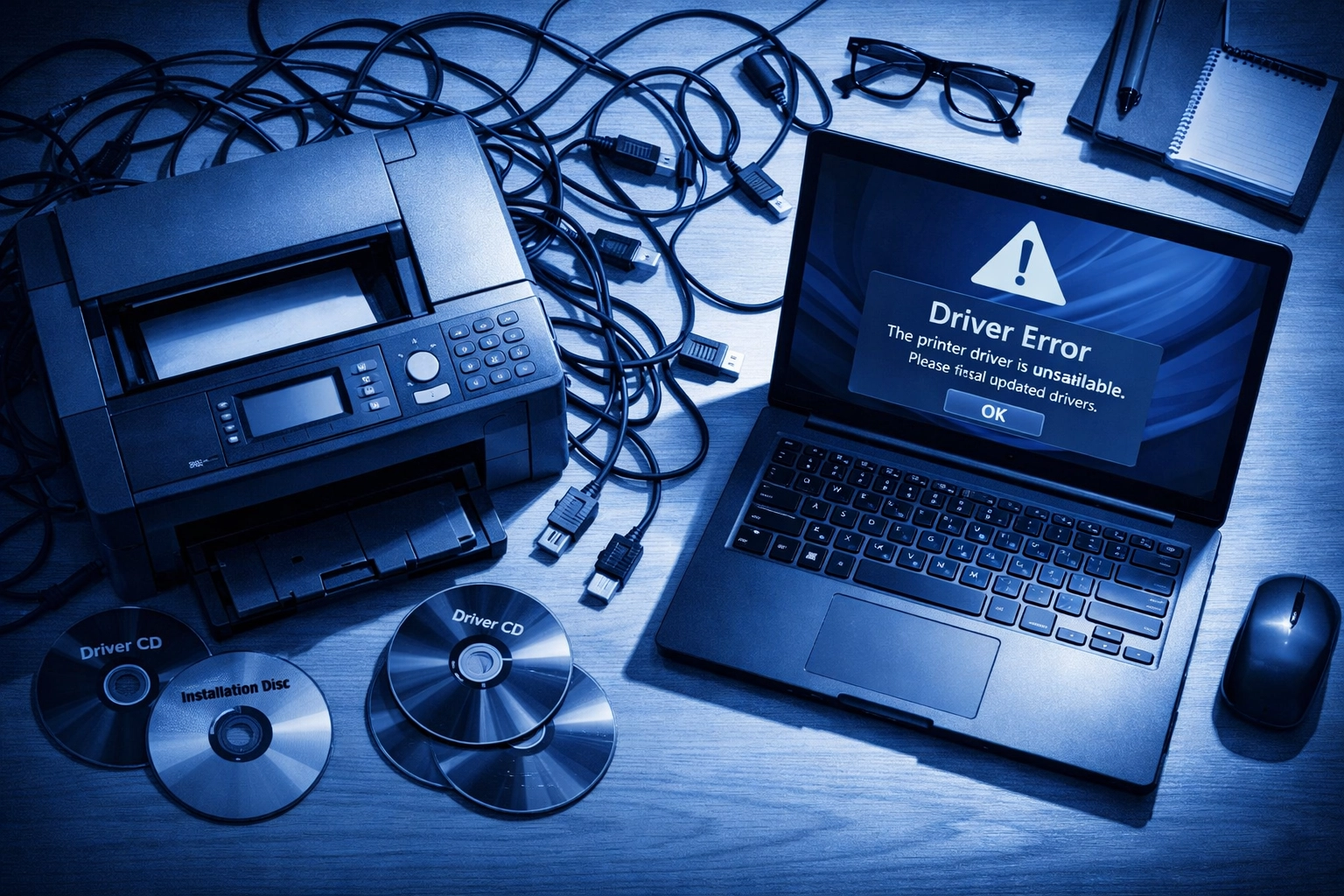
January 2026 (already happened): Microsoft stopped adding new V3 and V4 printer drivers to Windows Update. If you’re trying to set up an older printer on a fresh Windows 11 installation, you might not find the driver automatically available anymore.
July 1, 2026: Windows 11 will start prioritizing Microsoft’s built-in IPP class driver when multiple drivers are available for the same printer. Basically, Windows is saying “we’ll try our way first.”
July 1, 2027: Third-party printer driver updates through Windows Update will be restricted to security fixes only. No more feature updates or improvements for legacy drivers.
The key takeaway? You’ve got time. This isn’t a sudden cutoff, and Microsoft is being more gradual than the scary headlines suggest.
What Does “Mopria-Compliant” Actually Mean?
Mopria is an industry standard for printing that allows devices to print without needing manufacturer-specific drivers. It’s kind of like how most USB devices just work when you plug them in: no CD installation required.
If your printer is Mopria-compliant, it’ll work with Windows 11’s built-in IPP Class Driver. You plug it in (or connect via network), and Windows handles the rest. Simple.
The problem? Many older printers: especially those business workhorses from 5-10 years ago: aren’t Mopria-compliant. They were built in an era when every manufacturer created their own driver ecosystem.
Who’s Actually Affected?
Here’s where you might run into problems:
Scenario 1: You need to reinstall Windows 11 or set up a new PC, and your older printer’s V3/V4 driver isn’t available through Windows Update anymore. You’ll need to hunt down the driver from the manufacturer’s website or use a saved copy.
Scenario 2: You’re trying to add an older printer to a fresh Windows 11 machine that’s never had that printer installed before. Again, no automatic download from Windows Update.
Scenario 3: Your printer manufacturer has abandoned support for your model, and they’re not providing updated drivers or distributing the old ones anymore.
Who’s NOT affected: If your printer is already working on Windows 11 right now, and you’re not planning to reinstall Windows or add new machines, you’re probably fine for the foreseeable future.
The Features You Might Lose
Even if your old printer continues to work with the new IPP Class Driver, you might lose access to some of those fancy manufacturer-specific features. Things like:
- Advanced color management settings
- Duplex configuration options
- Custom paper tray selections
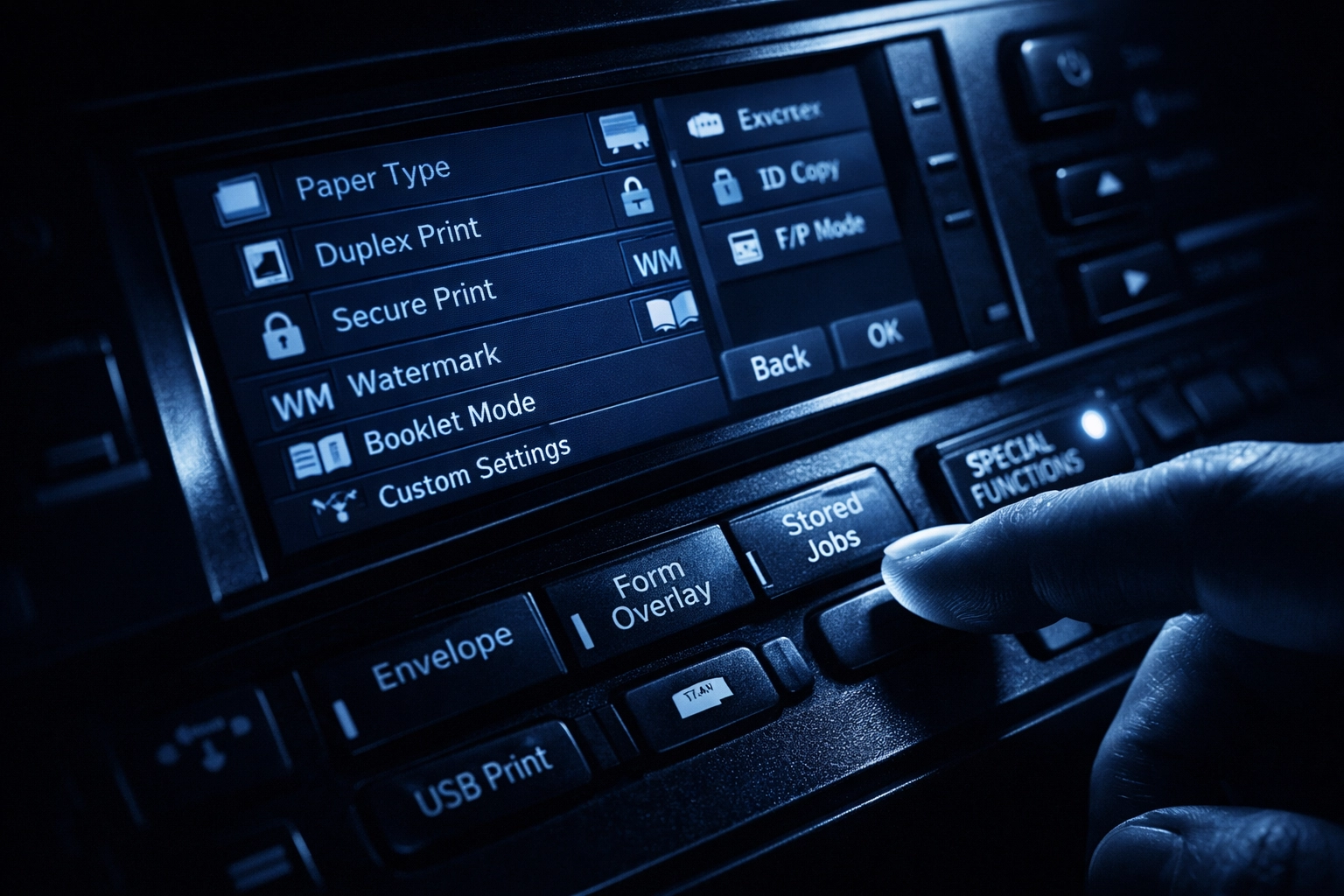
- Specialty print modes (poster printing, booklet mode, etc.)
- Vendor-specific security features
Basic printing? That’ll probably work fine. But if you rely on specific advanced features, that’s where the new driver approach might fall short.
Don’t Panic: Your Options Are Better Than You Think
Before you start budgeting for a complete printer fleet replacement, consider these options:
Option 1: Download and save your current drivers now. While they’re still available through Windows Update or your manufacturer’s website, grab those driver installers and store them somewhere safe. You can manually install them later if needed.
Option 2: Check your manufacturer’s support page. Many printer manufacturers are still distributing drivers directly through their own websites, even if they’re not on Windows Update. HP, Canon, Epson, and Brother have all maintained separate driver repositories.
Option 3: Test the IPP Class Driver. You might be surprised: your “old” printer might work better than expected with Microsoft’s built-in driver. Set up a test machine and see what happens before assuming the worst.
Option 4: Plan a staged hardware refresh. If your printers are approaching 7-10 years old, this might be the nudge you needed to start planning replacements. Modern printers are more efficient, secure, and cloud-friendly anyway.
How to Check If Your Printers Are Ready
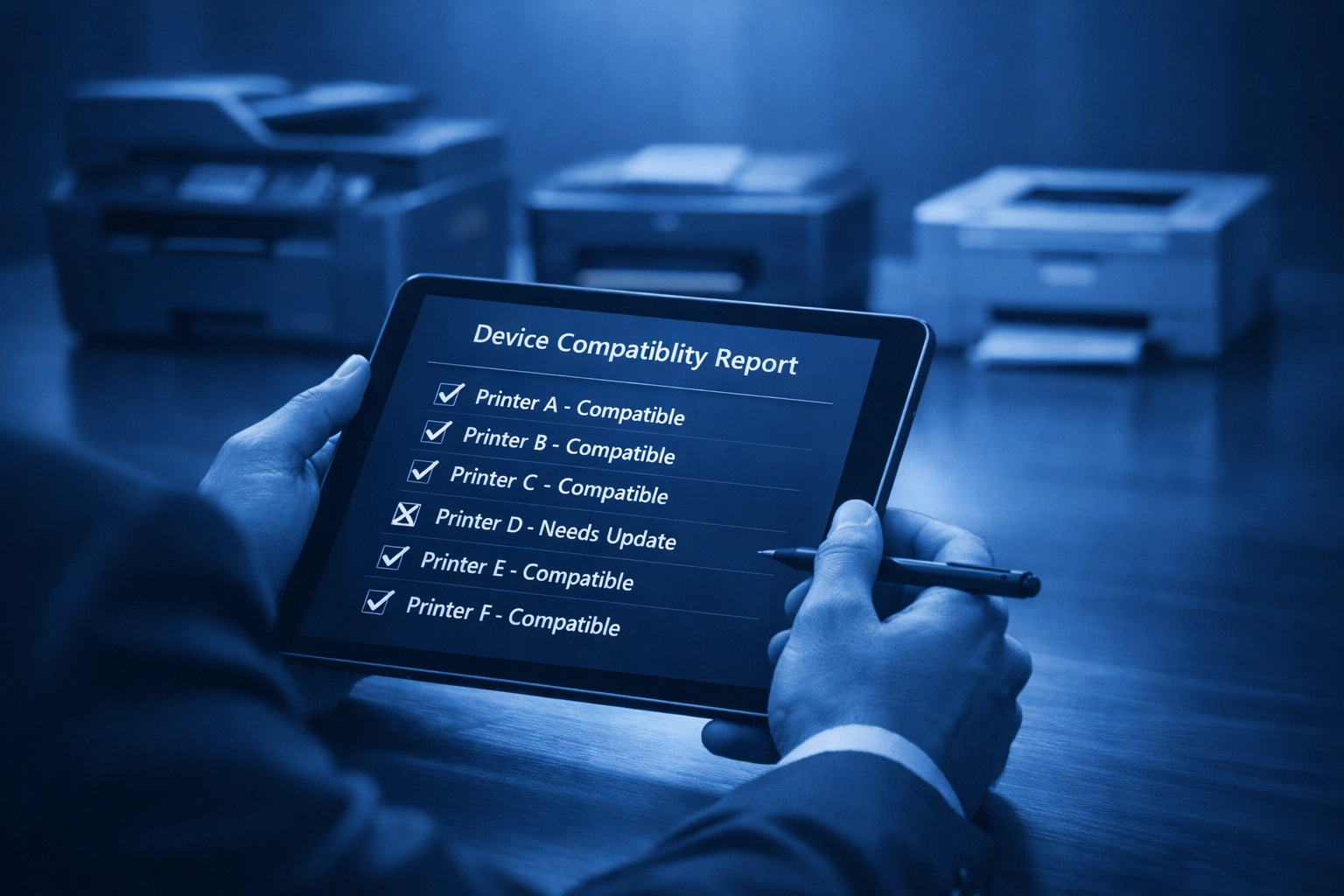
Here’s a quick audit checklist you can run through:
- Check the age of your printers. Anything manufactured after 2018 is more likely to support modern standards.
- Visit your printer manufacturer’s website. Look for Windows 11 compatibility information and check if Mopria support is listed.
- Look for the Mopria Certified logo. If your printer has this certification, you’re golden.
- Test your current setup. Try printing from a Windows 11 machine using just the IPP Class Driver (you can add the printer manually and select the generic IPP driver). If your essential functions work, you’re probably safe.
- Document your special requirements. Make a list of any advanced features your team actually uses regularly. This helps you decide if losing manufacturer-specific drivers would be a real problem or just a theoretical one.
What This Means for Your Business
If you’re managing IT for a small or medium-sized business, here’s the practical impact:
Short term (2026): Minimal disruption if you’re not adding new machines or reinstalling Windows frequently. Keep driver installers backed up just in case.
Medium term (2026-2027): Start testing printers with the IPP Class Driver. Identify any models that don’t play nice and prioritize those for replacement.
Long term (2027+): As you refresh hardware naturally, prioritize Mopria-compliant models. The “driverless” future will make your life easier anyway: less driver management, fewer compatibility headaches, and simpler deployments.
The silver lining? This change is actually pushing the industry towards simpler, more standardized printing. Once you’re through the transition, managing printers will be less of a headache.
How Cloud Computer Company Can Help
Look, we get it: you’ve got better things to do than audit printer drivers and test compatibility. That’s where we come in.
We can help you:
- Audit your current printer fleet for Windows 11 compatibility
- Test your devices with the new IPP Class Driver
- Source and backup legacy drivers before they disappear
- Plan a hardware refresh strategy that fits your budget and timeline
- Set up and manage modern, cloud-friendly printing solutions
Whether you need a full managed IT approach or just some expert consultancy to guide you through this transition, we’ve got your back.
The Bottom Line
Microsoft’s printer driver changes aren’t the apocalypse some headlines make them out to be. Your printers won’t suddenly stop working. But this is a heads-up that the printing landscape is shifting, and businesses using older hardware should start planning ahead.
Take some time over the next few months to assess what you’ve got, test your options, and create a plan. The businesses that will sail through this transition are the ones who get proactive now rather than scrambling in 2027 when driver support really dwindles.
Need help figuring out where your printers stand? Get in touch: we’d be happy to walk you through it.
About Mathew
Mathew Hoffman has been in the IT industry since 1981, holding senior positions at the State Bank of NSW, Minet Australia, Wilhelmsen Lines, and Rothmans of Pall Mall. A career highlight was managing IT infrastructure for the Sydney 2000 Olympics. Since 2001, Mathew has run an IT consultancy focused on helping small and medium-sized businesses leverage technology effectively. He became an original Google Partner in 2008 and rebranded to Cloud Computer Company in 2017. Based in Noosa, Mathew enjoys cricket (having played and coached in Sydney and the Sunshine Coast), spending time with family, the beach, and golf.