
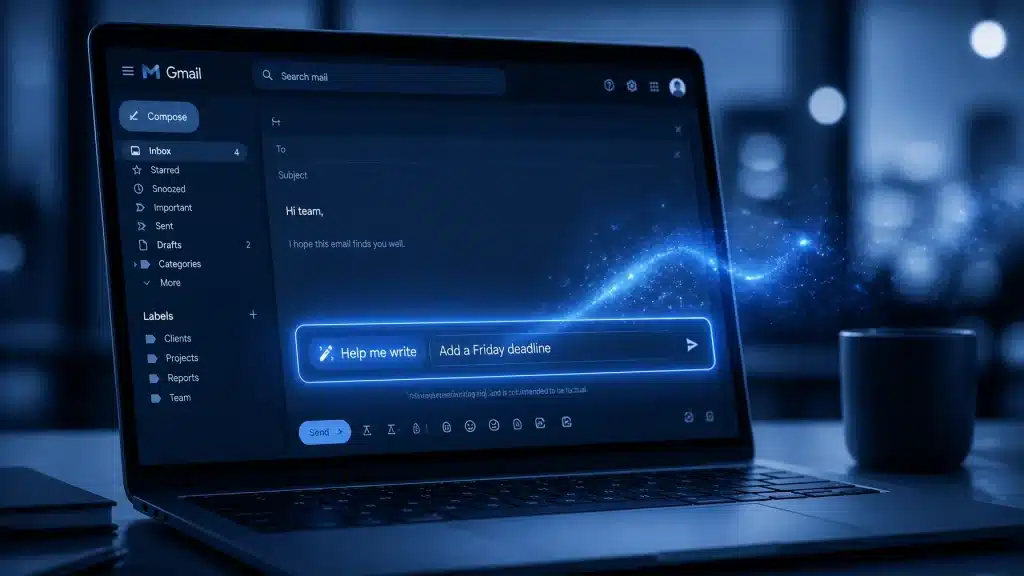
We’ve all been there. You invoke Gmail’s “Help me write” tool to draft an email. The AI spits out a solid template, but it’s missing a crucial detail. Maybe it left out the Monday deadline, forgot to mention the attachment, or the third sentence just doesn’t sound quite like you.
Previously, your only options were to manually edit the text or try one of Google’s preset refinement buttons like “Formalize,” “Shorten,” or “Polish.” If none of those hit the mark, it was back to old-fashioned typing.
Not anymore. Google has officially released a massive upgrade to Help me write in Gmail, introducing custom refinement capabilities that allow you to edit your drafts using your own natural language prompts.
What’s Changing? The End of Rigid AI Presets
For years, AI in the inbox felt like a “take it or leave it” proposition. You could ask Gemini to draft a message, and if the tone was too stiff, you’d click “Formalize” and hope for the best. But business communication is rarely that binary. Sometimes you need a message that is “mostly professional but slightly casual at the start,” or you need to “add a specific bulleted list without changing the rest of the text.”
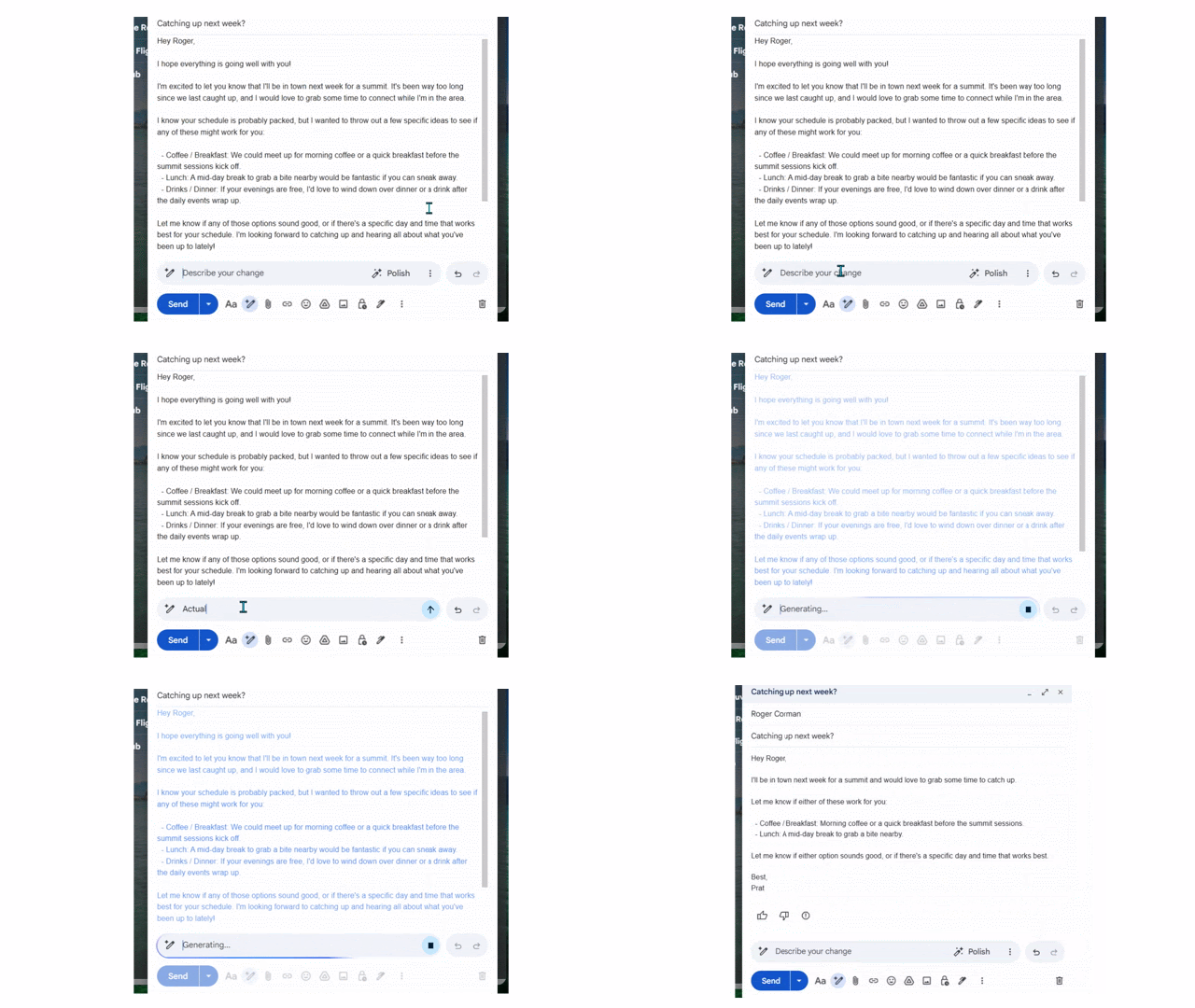
Instead of relying on rigid, one-click options, you now have a blank prompt bar to converse with the AI directly about the draft it just created.
Think of it as having a quick, real-time collaborative session with an assistant. You can tell the tool exactly how to adjust the draft. For example, you can now type commands like:
- “Add a deadline of Friday at 5 PM to the second paragraph.”
- “Make the opening sound a bit more casual, but keep the rest professional.”
- “Include a bulleted list highlighting the three project milestones.”
Gmail will instantly rewrite the draft based on your exact specifications. Even better? They’ve added Undo and Redo buttons right inside the feature. If a custom prompt takes your email in the wrong direction, you can instantly roll it back with a single click.

Why This Matters for Your Workflow
AI drafting is great for overcoming “blank-page anxiety,” but the real time-sink has always been fixing the nuances the AI gets wrong.
By allowing you to refine the text using natural sentences, Google is removing the friction of manual editing. You no longer have to hunt through a block of text to insert a missing sentence or fix a tone mismatch. You simply say what you want changed, and it’s done.
At Cloud Computer Company, we see this as a major win for cloud collaboration. For busy business owners and managers, the ability to iterate on a draft in seconds rather than minutes adds up. If you save five minutes on every complex email you write, you’re looking at hours of reclaimed time every single week.
5 Practical Scenarios for Custom Refinement
To get the most out of this update, you need to think beyond the basics. Here are five ways you can use the new custom prompt bar to streamline your communication:
1. The “Gentle Nudge” for Overdue Tasks
The Draft: A standard follow-up email.
The Custom Prompt: “Rewrite this to be a polite but firm reminder about the overdue invoice, and mention that we need it by Wednesday to avoid service delays.”
2. The “Executive Summary” for Reports
The Draft: A long, detailed project update.
The Custom Prompt: “Condense the first three paragraphs into a single executive summary of no more than three sentences, but keep the detailed breakdown at the bottom.”
3. The “Jargon Filter” for Clients
The Draft: A technical explanation of a migration.
The Custom Prompt: “Identify any technical jargon and replace it with plain language suitable for a non-technical business owner.”
4. The “Social Proof” Addition
The Draft: A sales outreach email.
The Custom Prompt: “Insert a sentence after the first paragraph mentioning our recent successful deployment for a similar-sized company in their industry.”
5. The “Tone Pivot”
The Draft: A formal meeting request.
The Custom Prompt: “Soften the language so it sounds less like a demand and more like an invitation to collaborate, while keeping the proposed time slots the same.”

Best Practices for Prompting Your Inbox
While the tool is incredibly intuitive, a little “prompt engineering” goes a long way. When using the new refinement bar, keep these three tips in mind:
- Be Specific with Locations: Don’t just say “add a deadline.” Say “Add a deadline to the end of the second paragraph.”
- State Your Audience: Tell the AI who you are writing to. “Adjust the tone for a new client” produces a different result than “Adjust the tone for my internal team.”
- Iterate, Don’t Restart: If the first refinement isn’t perfect, don’t delete it. Use a second prompt like “That’s better, but make it even shorter.”
Who Gets It and When?
The rollout is officially underway right now for both Rapid Release and Scheduled Release domains, with Google expecting the feature to be fully available to all eligible users by July 20, 2026.
It will be turned on by default for users with access to Gemini for Workspace, including:
- Google Workspace Business & Enterprise (Starter, Standard, and Plus)
- Google Workspace Frontline Plus
- Google AI Pro for Education
- Consumer accounts subscribed to Google AI Plus, Pro, and Ultra tiers.
If your team relies heavily on Google Workspace to keep projects moving, this update is going to make your inbox management a whole lot faster.

Master Your Workspace with Cloud Computer Company
Transitioning to AI-driven workflows can feel overwhelming, but you don’t have to do it alone. As a certified Google Cloud Partner, we specialise in helping businesses modernise their IT infrastructure and get the most out of tools like Gemini.
Whether you need a Google Workspace health check, tailored user training, or proactive technical support, we’re here to ensure your technology works for you: not the other way around.
Ready to supercharge your team’s productivity? Contact us today to learn how we can help you integrate the latest AI features into your daily operations with minimal disruption.
About Mathew

Mathew Hoffman is the owner of Cloud Computer Company. He started his career in IT in 1981 and has held senior roles at the State Bank of NSW, Minet Australia, Wilhelmsen Lines, and Rothmans of Pall Mall. A career highlight was his involvement in the Sydney 2000 Olympics. Since 2001, Mathew has provided IT consultancy to small and medium businesses. He became an original Google Partner in 2008 and re-branded to Cloud Computer Company in 2017. Based in Noosa, Mathew is a keen cricket fan, having played and coached in Sydney and on the Sunshine Coast. He also enjoys spending time with his family, hitting the beach, and playing a round of golf.