Ransomware is the stuff of nightmares for any business owner. One minute you’re sipping your morning coffee and checking emails, and the next, your entire file system is locked behind a cryptic screen demanding a massive payout in Bitcoin. It’s stressful, it’s expensive, and unfortunately, it’s becoming more common.
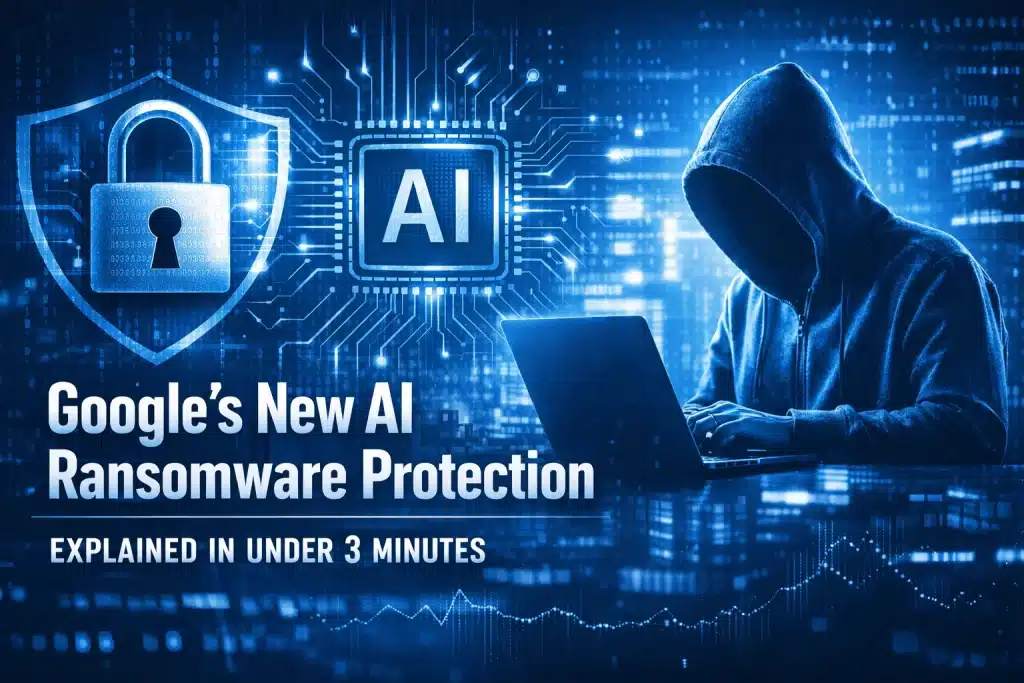
But if you’re using Google Workspace, things just got a whole lot safer. Google has recently rolled out a massive update to Google Drive for desktop (for both Windows and Mac) that uses advanced AI to spot ransomware before it ruins your week.
In this post, I’m going to break down how this works, why it’s a game-changer for your security, and how you can make sure your business is protected, all in about three minutes of reading.
The Problem with “Old School” Syncing
To understand why this AI update is so cool, we have to look at how ransomware usually interacts with cloud storage.
Most businesses use tools like Google Drive for desktop to keep their local files in sync with the cloud. It’s convenient because you can work on your Mac or PC just like you always have, and the files automatically back up to Google’s servers.
The problem? Ransomware loves a good sync.
When a virus hits your local computer and starts encrypting your files, your computer sees those changes as “updates.” It dutifully tells Google Drive, “Hey, I’ve updated 5,000 files! Please sync these new versions to the cloud.” Within minutes, your clean cloud backups are replaced with encrypted, useless versions.
Historically, you’d have to go through a painful process of version restoration or hope your Managed IT provider had an off-site backup ready to go.
Enter: Google’s AI-Powered “Pause” Button
Google’s new protection isn’t just a static filter; it’s a living AI model that monitors patterns. Instead of looking for a specific virus name, it looks at behaviour.
Here is how it works:
- Monitoring the Flow: The AI sits quietly in the background of your Drive for desktop app on your Windows or Mac machine. It monitors the rate and type of file changes occurring.
- Identifying the “Encryption Signature”: Ransomware has a very specific “fingerprint.” It opens a file, changes the data into gibberish, and often changes the file extension (like turning invoice.pdf into invoice.pdf.crypt). It does this very quickly to as many files as possible.
- The Instant Kill-Switch: As soon as the AI detects this specific pattern of mass-encryption, it immediately pauses syncing.
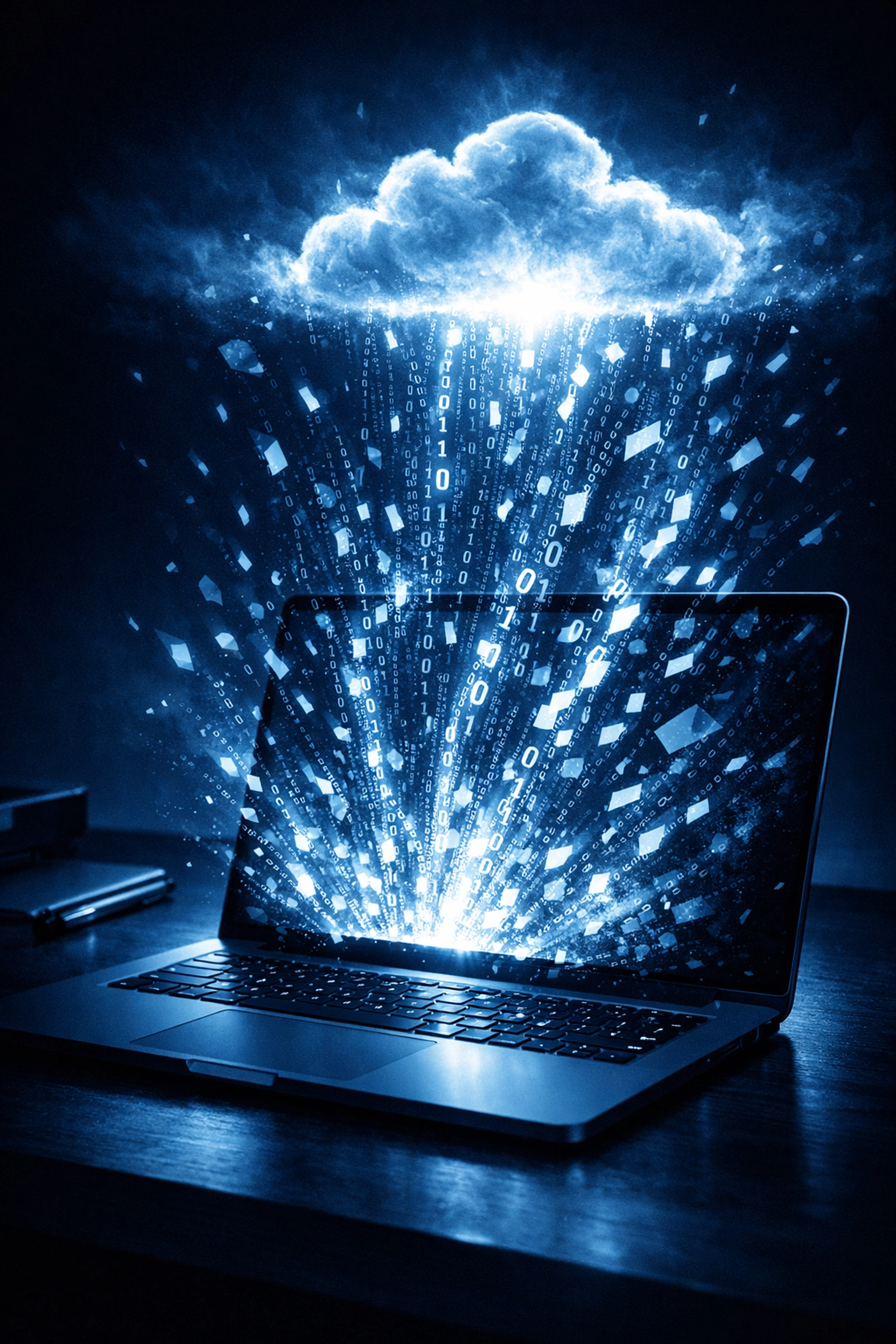
This is the “magic” moment. By pausing the sync the second the attack starts, the AI prevents the corrupted files from ever reaching the cloud. Your “clean” versions stay safe and sound in Google’s data centres, while the ransomware is trapped on your local machine.
How the Restoration Works
Stopping the sync is half the battle. The other half is getting your business back up and running.
If the AI triggers a pause, you’ll receive an immediate notification on your desktop and an alert in the Google Workspace Admin console. From there, the restoration process is surprisingly simple.
Because the sync was paused, most of your cloud files are untouched. For the handful of files that might have been changed before the AI “tripped the wire,” Google has introduced an easy restoration dashboard. You can essentially “undo” the last few minutes of activity with a couple of clicks, rolling back only the affected files to their last known healthy state.
It’s a far cry from the old days of spending 48 hours restoring entire server volumes from tape or external drives.

Why This Matters for Windows and Mac Users
While Google Drive on the web is inherently very secure, most of us prefer the “Desktop” experience. We like using Finder on Mac or File Explorer on Windows. This creates a bridge between your local OS and the cloud, and that bridge is exactly what hackers try to cross.
By putting the AI directly into the Drive for desktop client, Google has secured the “front door” of your computer.
Whether you are a creative studio using high-end Macs or an accounting firm running a fleet of Windows laptops, this protection works the same way. It’s built-in, it’s automatic, and it doesn’t require you to be a cybersecurity expert to manage it.
Is This Enough to Protect Your Business?
I get asked this a lot: “If Google has AI protection, do I still need other security?”
The short answer is yes. This AI feature is a fantastic “safety net” for your data, but it’s just one piece of the puzzle. Think of it like a high-tech airbag in a car. It’s great to have if things go wrong, but you still want brakes, seatbelts, and a focused driver.
A truly secure business needs:
- Endpoint Protection: Good quality antivirus that tries to kill the ransomware before it even starts encrypting.
- Regular Audits: Ensuring your sharing permissions aren’t leaving your data exposed to the public. We actually offer a Google Workspace Health and Security Checkup to help with this.
- Multi-Factor Authentication (MFA): To stop hackers from getting into your account in the first place.

Setting It Up (Or Checking If It’s On)
The good news is that for most Google Workspace users, this feature is being rolled out as a standard part of the Drive for desktop updates. However, it’s always worth checking your settings.
- Ensure you are running the latest version of Drive for desktop.
- Check with your Workspace Admin (or give us a yell at Cloud Computer Company) to ensure “Ransomware detection and protection” is enabled in the Admin Console under Apps > Google Workspace > Drive and Docs > Malware and Ransomware.
If you aren’t sure if your team is properly protected, it might be time to look at Consultancy to shore up your defences.

The Bottom Line
Ransomware isn’t going away, but the tools we have to fight it are getting incredibly smart. Google’s move to bring AI-powered detection directly to your Mac or PC is a massive win for small and medium businesses. It provides a level of protection that used to cost thousands of dollars a month, now built right into the tools you already use.
Stay safe out there, keep your software updated, and let the AI do the heavy lifting for you!
About Mathew Hoffman

Mathew Hoffman is the Owner of Cloud Computer Company and has been a fixture in the IT industry since 1981. Over the decades, he has held senior roles at major organisations including the State Bank of NSW, Minet Australia, Wilhelmsen Lines, and Rothmans of Pall Mall. One of the highlights of his career was working on the IT infrastructure for the Sydney 2000 Olympics.
Since 2001, Mathew has focused his expertise on providing high-level IT consultancy to small and medium businesses. He was an early adopter of cloud technology, becoming an original Google Partner back in 2008, before re-branding his firm to Cloud Computer Company in 2017.
Now based in beautiful Noosa, Mathew balances his passion for tech with his love for the community. You’ll often find him involved in cricket: having played and coached in both Sydney and on the Sunshine Coast: or spending quality time with his family at the beach or hitting a round of golf.