
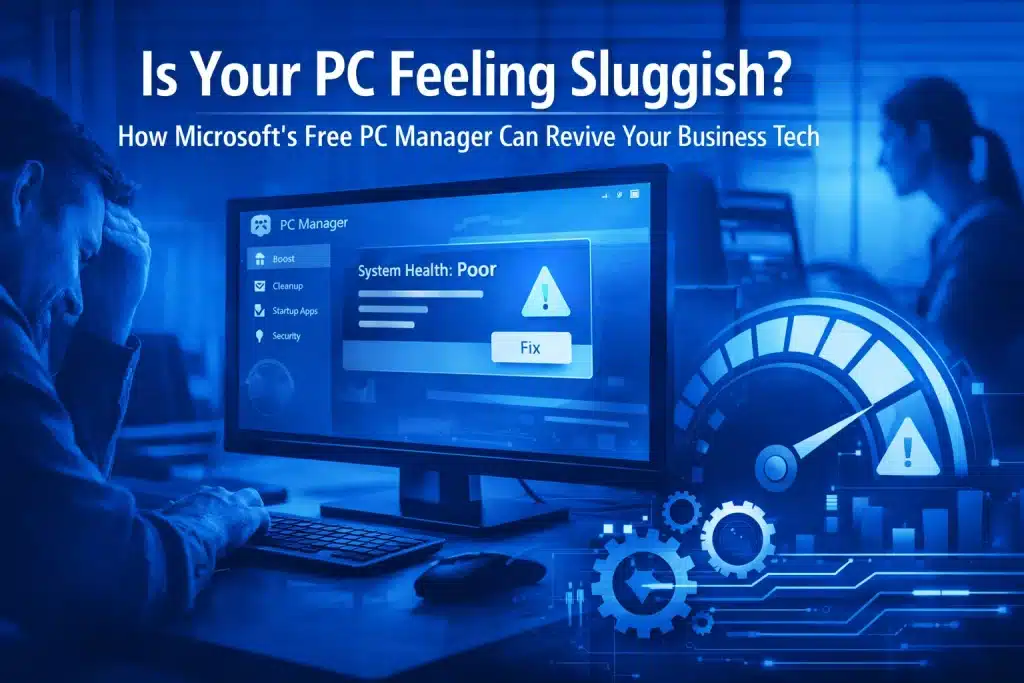
We’ve all been there. You fire up your PC on a Monday morning, and it feels like it’s running through molasses. Apps take forever to open, switching between tabs is painful, and that spinning wheel of doom appears more often than you’d like. For businesses, this isn’t just annoying: it’s costing you real productivity.
Here’s the good news: Microsoft has quietly released a free tool that might be exactly what your business PCs need. It’s called Microsoft PC Manager, and it’s designed to tackle those performance issues without forcing you to download sketchy third-party “optimizer” apps that promise the world but often deliver bloatware.
What Exactly Is Microsoft PC Manager?
Think of Microsoft PC Manager as your PC’s personal trainer. It’s a free utility app that brings together all the essential Windows maintenance tools into one clean, easy-to-use dashboard. Instead of hunting through various Windows settings or downloading random cleanup apps, everything you need is right there.
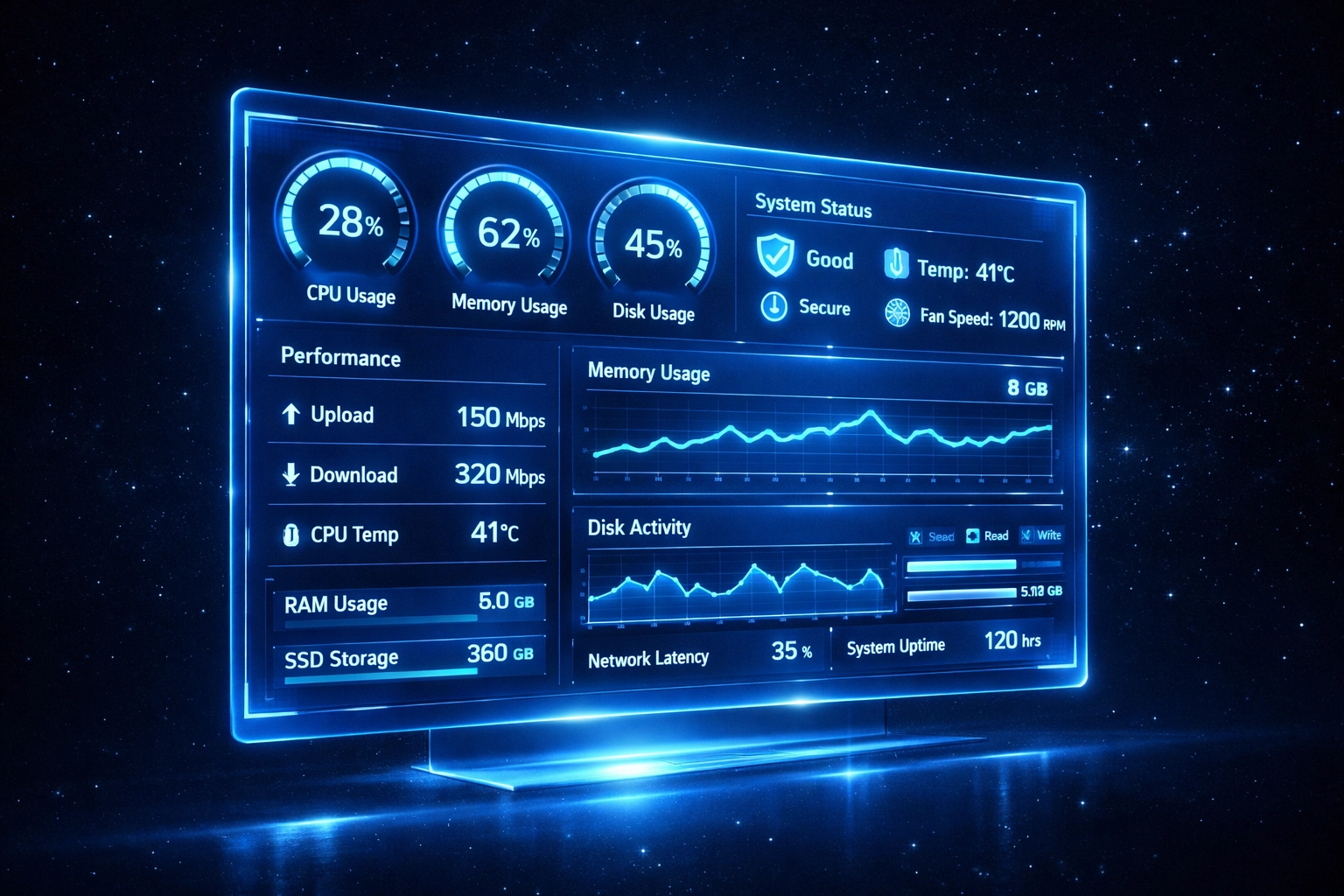
The beauty of PC Manager is that it doesn’t introduce any weird new software to your system. It simply organizes the tools Windows already has, making them accessible and actually usable. For business owners and IT leaders managing multiple machines, this is huge. No compatibility nightmares, no conflicts with existing security software: just streamlined maintenance.
Why Your Business PCs Are Slowing Down
Before we dive into the solution, let’s talk about why this happens in the first place. Business computers typically accumulate digital clutter faster than personal machines because:
- Multiple users and workflows mean more programs installed over time
- Cached files from cloud apps (like Google Workspace or Microsoft 365) pile up
- Background processes from business software eating RAM
- Temporary files that never get cleaned up
- Outdated startup programs launching every time you boot up
Each of these issues chips away at your system performance. Over months and years, what was once a zippy machine becomes frustratingly slow. And let’s be honest: most of us don’t have time to manually hunt down these problems.
The Key Features That Actually Matter
Microsoft PC Manager isn’t trying to be everything to everyone. It focuses on four core areas that make the biggest difference to performance. Here’s what you need to know:
1. The Boost Function (Your Quick Win)
This is probably the feature you’ll use most often. The Boost function identifies programs hogging memory in the background and shuts them down. It’s like hitting a refresh button for your PC’s RAM.
What makes this smart is that it adapts based on what you’re currently doing. Working in Excel with 50 tabs open in Chrome? PC Manager prioritizes those. It’s not just blindly killing processes: it’s making intelligent decisions about what matters right now.
For businesses, this means your team can get a performance boost with literally one click. No technical knowledge required.
2. Health Check (The Dashboard You’ll Actually Use)
The Health Check gives you a bird’s-eye view of your PC’s current state. It scans for common issues like:
- Storage space problems
- Startup program bloat
- Security vulnerabilities
- System file integrity
What I appreciate here is the simplicity. Instead of overwhelming you with technical jargon, it shows you what’s wrong and gives you one-click fixes. Perfect for businesses where not everyone on the team is tech-savvy.
3. Deep Cleanup (Actually Gets Rid of Junk)
Windows has a built-in cleanup tool, but let’s be real: it’s pretty basic. PC Manager’s Deep Cleanup goes further by identifying and removing:
- Large temporary files (especially those over 1GB)
- Cached data from apps you rarely use
- Duplicate files that waste space
- Old Windows update files you definitely don’t need anymore
For businesses running older machines or devices with limited storage (looking at you, 256GB laptops), this feature can recover serious amounts of space. I’ve seen it free up 20-30GB on machines that were constantly showing “low disk space” warnings.
4. Storage Management (See What’s Actually Taking Up Space)
Ever wondered where all your storage went? Storage Management shows you exactly what’s eating up your drive space, broken down by category: apps, documents, videos, system files, and so on.
This is especially useful for businesses dealing with large files like design assets, video content, or engineering documents. You can quickly identify what’s safe to archive or delete without accidentally removing something important.
Why This Beats Third-Party “Optimizer” Apps
Let’s address the elephant in the room. The internet is full of PC optimizer apps promising to make your computer lightning-fast. Some are legitimate, but many are… not great.
Here’s why Microsoft PC Manager is a better choice for businesses:
It’s actually free. No hidden upsells, no “premium” version required to access basic features. You get everything without spending a cent.
No bloatware or ads. Third-party cleaners often install their own junk while claiming to remove yours. PC Manager is just a tool: nothing extra, nothing shady.
Built by Microsoft. This means it’s designed specifically for Windows, with no compatibility concerns. It won’t conflict with your antivirus or mess with system files.
Regular updates. As part of the Microsoft ecosystem, PC Manager gets updated alongside Windows. You’re not relying on a random company that might abandon the project next year.
For businesses, trust matters. You don’t want to install something on company machines that could introduce security risks or cause technical headaches down the line. PC Manager eliminates those concerns.

Getting Started Is Ridiculously Easy
If you’re sold on giving this a try (and you should be), here’s how to get started:
- Check your Windows version. PC Manager works on Windows 10 (version 19042.0 or later) and Windows 11. Most business PCs from the last few years should be fine.
- Download from the Microsoft Store. Search for “Microsoft PC Manager” or grab it directly from Microsoft’s official site. Takes about two minutes to install.
- Run your first Health Check. Open the app and click “Health Check” to see what issues it finds. You’ll probably be surprised at what’s been lurking in the background.
- Set it and forget it. The latest version automatically triggers cleanup when your RAM usage spikes or temporary files pile up. You can also schedule regular maintenance if you prefer.
For IT managers rolling this out across multiple machines, the simplicity is a major win. No complex configuration, no training required: just install and let it do its thing.
Is It Worth Your Time?
Here’s my take: if you’re managing business PCs that are more than a year old and you’re noticing performance issues, Microsoft PC Manager is absolutely worth the 15 minutes it takes to set up. It won’t turn a potato into a gaming rig, but it will help your existing hardware run closer to how it did when it was new.
The best part? It’s completely free and comes from a source you can trust. In the world of PC maintenance tools, that’s surprisingly rare.
And if your business is already invested in the Microsoft ecosystem, using Google Workspace or other cloud-based tools: keeping your hardware performing well ensures you’re getting the most out of those investments too.
Give it a shot. Your Monday morning self will thank you.
About Mathew

Mathew Hoffman is the founder and owner of Cloud Computer Company. With years of experience in the cloud IT space, Mathew is passionate about helping businesses leverage technology to work smarter, not harder. When he’s not helping clients migrate to the cloud or tightening their security, you’ll probably find him exploring the latest tech or enjoying a weekend on the Sunshine Coast.