
If your business is running on Chromebooks (or thinking about making the switch), you’re already on the right track. These lightweight, cloud-focused machines are perfect for Australian SMBs looking to boost productivity without breaking the bank. But here’s the thing – most people are only scratching the surface of what their Chromebook can do.
Whether you’re managing a team in Melbourne, running a startup in Brisbane, or consulting from a home office in Perth, these 10 power hacks will transform how you work. No tech degree required – just simple tricks that’ll save you time and make your workday smoother.
1. Master the Keyboard Shortcut Cheat Sheet
Stop clicking around like you’re playing whack-a-mole. Your Chromebook has a built-in cheat sheet that’ll turn you into a keyboard ninja overnight.
Press Ctrl + Alt + ? and boom – you’ll see a visual map of every shortcut available on your device. This isn’t just some boring list; it’s an interactive overlay showing exactly which keys do what. Spend five minutes learning the basics like Ctrl + T for new tabs, Alt + Tab to switch between apps, and Ctrl + Shift + Q Q to sign out (trust us, that double-Q prevents accidental logouts).
Business benefit: Your team will work 30% faster once they ditch the mouse for common tasks. Multiply that across your whole team, and you’re looking at serious productivity gains.

2. Use Overview Mode for Ultimate Multitasking
Running multiple projects at once? Welcome to the club. The Overview feature is your new best mate for keeping everything organised.
Simply swipe down with three fingers on your touchpad (or press the Overview key if you have one). You’ll see all your open windows laid out like cards on a table. From here, you can quickly jump between tasks, close windows you don’t need, or even drag windows to create split-screen setups.
Business benefit: Perfect for client calls where you need to reference emails, documents, and your calendar simultaneously. No more fumbling around trying to find the right window.
3. Pair Your Phone for Smart Lock
Typing your password fifty times a day? Not anymore. Smart Lock lets your trusted Android phone unlock your Chromebook automatically.
Head to Settings > Connected devices > Set up and follow the prompts to pair your phone via Bluetooth. Once set up, just click on your profile avatar when your phone is nearby, and you’re in. No password needed.
Business benefit: Saves time and reduces the temptation to use weak passwords. Your IT security improves while your workflow gets smoother.
4. Work Offline Like a Pro
Internet dropouts happen – it’s Australia, we know the drill. But that doesn’t mean your productivity has to suffer.
Google Workspace apps (Docs, Sheets, Slides) work offline on Chromebooks. Visit drive.google.com, click the settings cog, and enable “Offline” mode. Your recent documents will sync to your device, so you can keep working even when your NBN decides to take a break.
Business benefit: Never miss a deadline because of connectivity issues. Your proposals, reports, and presentations keep moving forward regardless of your internet situation.

5. Navigate Like a Touchpad Wizard
Your Chromebook’s touchpad is more powerful than you think. Master these gestures and you’ll wonder how you ever lived without them:
- Three fingers left/right: Switch between browser tabs
- Three fingers up: See all open windows (Overview mode)
- Two fingers left/right: Navigate back and forward on web pages
- Pinch to zoom: Just like your phone
Business benefit: Smoother client presentations and faster research. When you’re screen-sharing with clients, these smooth transitions look professional and keep everyone focused.
6. Troubleshoot with Task Manager
When your Chromebook starts acting sluggish (usually because you’ve got 47 tabs open – we’ve all been there), the Task Manager is your troubleshooting buddy.
Press Shift + Esc to open it up. You’ll see exactly which apps and tabs are hogging your memory and CPU. Found the culprit? Click on it and hit “End process.” Your Chromebook will thank you.
Business benefit: Fix performance issues in seconds instead of restarting everything. Keep important work sessions running while you deal with problematic applications.
7. Enable Caps Lock When You Need It
Unlike traditional laptops, Chromebooks don’t have a dedicated Caps Lock key by default. But sometimes you need to EMPHASISE SOMETHING IMPORTANT in your emails.
Press Alt + Search (the Search key is where Caps Lock usually lives) to toggle Caps Lock on and off. Simple as that.
Business benefit: Professional communication sometimes requires emphasis. Whether you’re highlighting urgent deadlines or creating attention-grabbing headers, you’ve got the tool when you need it.
8. Attach Files Directly to Calendar Events
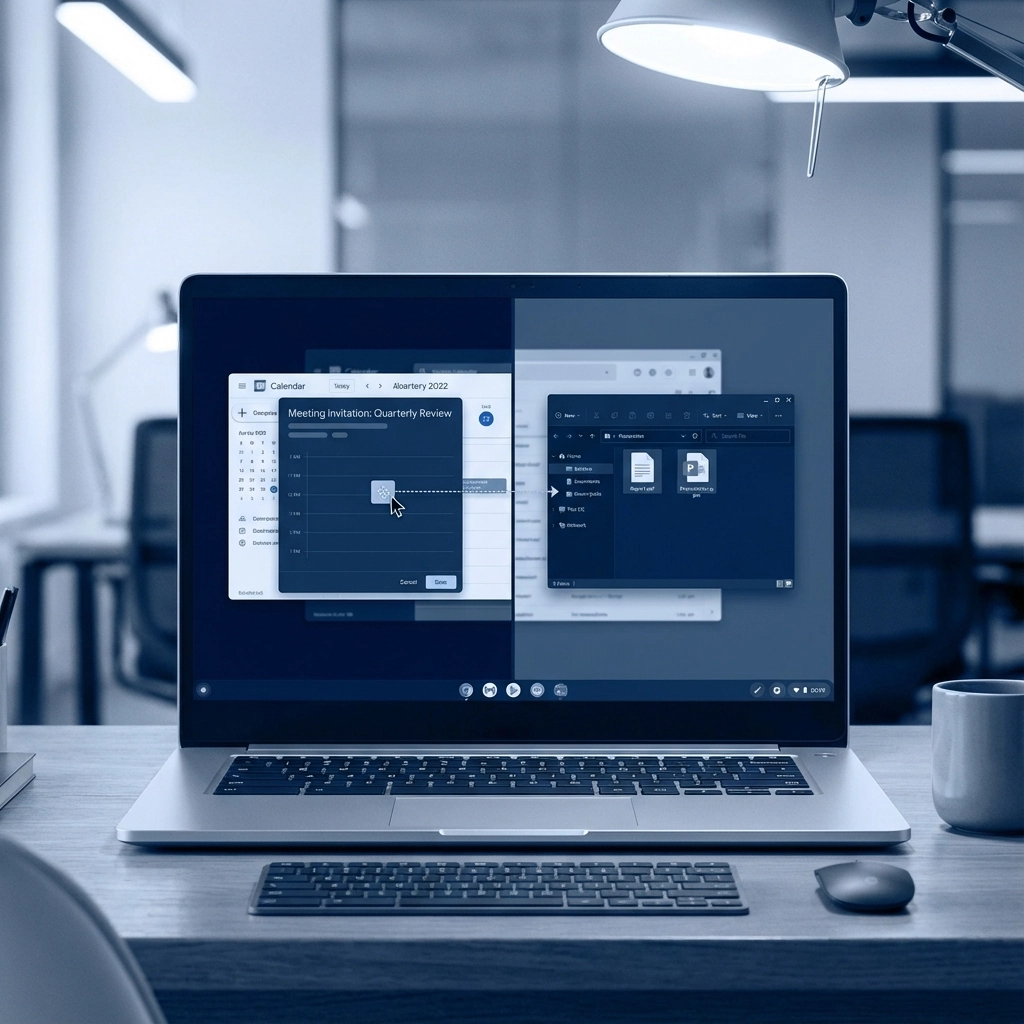
Stop sending follow-up emails with meeting attachments. Google Calendar on your Chromebook lets you attach files directly to calendar invitations.
When creating an event, look for the attachment option in the event details. Upload your agenda, presentation, or relevant documents. Everyone invited will see the attachments right in their calendar notification.
Business benefit: Streamlined meeting preparation and better-organised teams. No more “did you get my email with the agenda?” conversations.
9. Leverage Android Apps for Business
Here’s where Chromebooks really shine for business users. You can install Android apps from the Google Play Store, dramatically expanding what your device can do.
Need QuickBooks for accounting? There’s an app for that. Want to use Slack for team communication? Download it. Prefer Zoom over Google Meet? No worries. Most business tools have Android versions that work beautifully on Chromebooks.
Business benefit: One device handles all your business needs. No more “I need my Windows laptop for this one specific program” situations.
10. Factory Reset with Powerwash
Sometimes you need a fresh start – maybe you’re passing a device to a new team member, or your Chromebook has accumulated digital clutter over the years.
Powerwash is Chrome OS’s factory reset feature. Go to Settings > Advanced > Reset settings > Powerwash and follow the prompts. Your Chromebook will restart like it’s fresh out of the box, but all your Google account data will sync back once you sign in.
Business benefit: Easy device recycling and onboarding. When someone leaves the team or joins it, you can quickly prepare a clean, secure device without any IT headaches.
Why This Matters for Your Business
Look, Chromebooks aren’t just cheap laptops – they’re purpose-built for the way modern businesses actually work. Most of your daily tasks happen in a browser anyway: email, document editing, video calls, project management, accounting software. Why pay premium prices for features you’ll never use?
These power hacks turn your affordable Chromebook fleet into productivity powerhouses. Your team gets the tools they need, your IT costs stay reasonable, and everyone wins.
If you’re thinking about making the switch to Chromebooks for your business, or if you want help optimising your current Google Workspace setup, we’re here to help. At Cloud Computer Company, we specialise in making cloud technology work seamlessly for Australian businesses.
Ready to supercharge your team’s productivity? These ten hacks are just the beginning.
About Mathew Hoffman